• IMPORTANT NOTICE: The Excelguru Help Forums will be permanently shut down on Friday, June 26, 2026.

    With AI taking a more prevalent role in answering user questions, the traffic to the Excelguru Help Forums has seen a sharp decrease in traffic over the past couple of years. We do not see this trend changing anytime in the near future. As such, continuing to run the forums is just no longer feasible, so we have made the difficult decision to close them down at the end of the month.

    We appreciate everyone who joined our forums to ask and answer questions over the past decade – and in particular – want to say a huge THANK YOU to the moderators and administrators who volunteered their time and expertise on a daily basis. You made the community what it was.

    NOTE: NEW USER ACCOUNTS CAN NO LONGER BE CREATED.

Convert a Flat Data with Multiple Headings to a Database

prkhan56

New member
Joined
Sep 6, 2011
Messages
19
Reaction score
0
Points
1
I have a flat data with Data starting from Row 3 shown in Before.xlsx.

Row 3 is having the name of the VENDORS which is merged under which we have EXP and QTY

Row No 3 – Cells A3 to D3 are blanks. Cells E3 and F3 are merged with Heading Vendor name eg KUBBA KASBIYA, similarly G3 and H3 are merged with Heading Vendor name eg DINAR HAFEET and so on there are set of merged Cells with relative Headings till the end

Col A – Cell A4 Heading is SAP CODE

Col B – Cell B4 Heading is BARCODE

A Blank Cell in Col B indicates starting of new set of Items in Col C

Col C – must split in two columns Cell C4 CATEGORY with the Heading value is in C4 viz FA Rollon 50 ML.

Col D – will now be ITEM populating the relevant Item corresponding to each SAP CODE and BARCODE

Col E – Cell E4 Heading will be now PRICE/PC

I want to convert it to a database as shown in the Result.xlsx.

The format of SAP CODE, BARCODE, CATEGORY and ITEM will be Text. PRICE/PC to be decimal, EXP to be mmm-yy, and QTY to be whole number.

Any help would be appreciated.
Rashid
 

Attachments

  • Group Help Before.xlsx
    92.2 KB · Views: 6
  • Group Help Result.xlsx
    11.4 KB · Views: 5
Using Power Query aka Get and Transform Data

Code:
let
    Source = Excel.CurrentWorkbook(){[Name="Table1"]}[Content],
    #"Demoted Headers" = Table.DemoteHeaders(Source),
    #"Transposed Table" = Table.Transpose(#"Demoted Headers"),
    #"Merged Columns" = Table.CombineColumns(#"Transposed Table",{"Column1", "Column2"},Combiner.CombineTextByDelimiter(":", QuoteStyle.None),"Merged"),
    #"Transposed Table1" = Table.Transpose(#"Merged Columns"),
    #"Promoted Headers" = Table.PromoteHeaders(#"Transposed Table1", [PromoteAllScalars=true]),
    #"Changed Type" = Table.TransformColumnTypes(#"Promoted Headers",{{"Column2:BARCODE", type text}}),
    #"Unpivoted Other Columns" = Table.UnpivotOtherColumns(#"Changed Type", {"Column1:SAP CODE ", "Column2:BARCODE", "Column3:FA ROLLON 50ML ", "Column4:PRICE/PC"}, "Attribute", "Value"),
    #"Added Custom" = Table.AddColumn(#"Unpivoted Other Columns", "Custom", each if Text.Contains([Attribute], "QTY") then [Value] else null),
    #"Filled Up" = Table.FillUp(#"Added Custom",{"Custom"}),
    #"Filtered Rows" = Table.SelectRows(#"Filled Up", each not Text.Contains([Attribute], "QTY")),
    #"Changed Type1" = Table.TransformColumnTypes(#"Filtered Rows",{{"Value", type date}}),
    #"Added Custom1" = Table.AddColumn(#"Changed Type1", "Custom.1", each try Type.Is(Text.InferNumberType(Text.From([Custom])), type number) otherwise false),
    #"Filtered Rows1" = Table.SelectRows(#"Added Custom1", each ([Custom.1] = true)),
    #"Removed Columns" = Table.RemoveColumns(#"Filtered Rows1",{"Custom.1"}),
    #"Renamed Columns" = Table.RenameColumns(#"Removed Columns",{{"Column1:SAP CODE ", "SAP CODE"}, {"Column2:BARCODE", "BARCODE"}, {"Column3:FA ROLLON 50ML ", "FA ROLLON 50ML"}, {"Column4:PRICE/PC", "PRICE/PC"}, {"Attribute", "Vendor"}, {"Value", "Date"}, {"Custom", "Amount"}})
in
    #"Renamed Columns"

This is as close as I can come to your expected results. Note that all the null values are not represented.
 

Attachments

  • Group Help Before.xlsx
    112 KB · Views: 6
Using Power Query aka Get and Transform Data

Code:
let
    Source = Excel.CurrentWorkbook(){[Name="Table1"]}[Content],
    #"Demoted Headers" = Table.DemoteHeaders(Source),
    #"Transposed Table" = Table.Transpose(#"Demoted Headers"),
    #"Merged Columns" = Table.CombineColumns(#"Transposed Table",{"Column1", "Column2"},Combiner.CombineTextByDelimiter(":", QuoteStyle.None),"Merged"),
    #"Transposed Table1" = Table.Transpose(#"Merged Columns"),
    #"Promoted Headers" = Table.PromoteHeaders(#"Transposed Table1", [PromoteAllScalars=true]),
    #"Changed Type" = Table.TransformColumnTypes(#"Promoted Headers",{{"Column2:BARCODE", type text}}),
    #"Unpivoted Other Columns" = Table.UnpivotOtherColumns(#"Changed Type", {"Column1:SAP CODE ", "Column2:BARCODE", "Column3:FA ROLLON 50ML ", "Column4:PRICE/PC"}, "Attribute", "Value"),
    #"Added Custom" = Table.AddColumn(#"Unpivoted Other Columns", "Custom", each if Text.Contains([Attribute], "QTY") then [Value] else null),
    #"Filled Up" = Table.FillUp(#"Added Custom",{"Custom"}),
    #"Filtered Rows" = Table.SelectRows(#"Filled Up", each not Text.Contains([Attribute], "QTY")),
    #"Changed Type1" = Table.TransformColumnTypes(#"Filtered Rows",{{"Value", type date}}),
    #"Added Custom1" = Table.AddColumn(#"Changed Type1", "Custom.1", each try Type.Is(Text.InferNumberType(Text.From([Custom])), type number) otherwise false),
    #"Filtered Rows1" = Table.SelectRows(#"Added Custom1", each ([Custom.1] = true)),
    #"Removed Columns" = Table.RemoveColumns(#"Filtered Rows1",{"Custom.1"}),
    #"Renamed Columns" = Table.RenameColumns(#"Removed Columns",{{"Column1:SAP CODE ", "SAP CODE"}, {"Column2:BARCODE", "BARCODE"}, {"Column3:FA ROLLON 50ML ", "FA ROLLON 50ML"}, {"Column4:PRICE/PC", "PRICE/PC"}, {"Attribute", "Vendor"}, {"Value", "Date"}, {"Custom", "Amount"}})
in
    #"Renamed Columns"

This is as close as I can come to your expected results. Note that all the null values are not represented.
Thanks for your prompt solution. Everything looks OK except the creation of CATEGORY and ITEM columns. We need it as per the Result files shared.
Thanks once again
 
Revised the Mcode which you can find in the attached file.

Data-->Queries and Connections--Edit
 

Attachments

  • Group Help Before.xlsx
    112.3 KB · Views: 4
Hi Alan,
Thanks for the revised code.
Few things before I can test it completely.
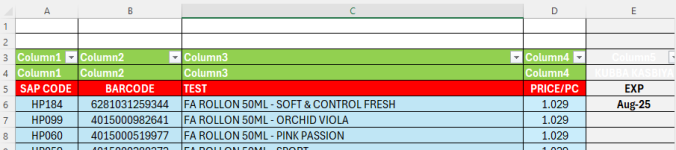
1) The file you shared with the revised code shows two Headers Rows viz Column1, Column2 etc shown in Row3 and Row4.
2) The Output comes with FA Rollon 50 ML as static Category. What if in another file the value will be different to this.

Kindly inform me how I can implent it on a different file with same set up but different value than FA Rollon 50 ML and secondly how can I make the table with two headings in Row3 and Row4.

Thanks once again for your time and help
 
Cannot because you have two header rows and one of them is the FA Rollon 50 ML. The only alternative is to create a parameter query where that is a variable that is manually loaded by the user. It cannot be automatic. I am not aware of having two headings employing Power Query.
 
Hi Alan,
Thanks for your response.

Can you please share a solution with parameter query?

Also about point 1) in my previous reply.

Thanks once again for your time and help
 
I have no idea what you are referring to in point 1. Attached is the file with a parameter query.
 

Attachments

  • Group Help Before.xlsx
    113.5 KB · Views: 2
Hi Alan,
Please refer to two screenshots.

screenshot Group Headers Point 1 shows two rows with Column1, Column2 etc.
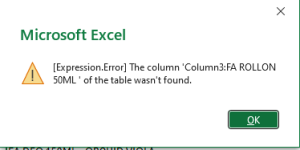
The new parameter query pops up with the error shown in Group Error screenshot

Thanks for all your help and time
 

Attachments

  • Group Error.PNG
    Group Error.PNG
    5.4 KB · Views: 3
  • Group Header Point 1.PNG
    Group Header Point 1.PNG
    19.1 KB · Views: 3
I have neither of those issues in my file. Re: Two header rows, I suspect that has to do with you selecting the location to close and load your data. It is overwriting a portion of a previous file, but not in its entirety. Without seeing your file that you are working on, it is impossible for me to diagnose your issue. What you have presented to me previously, if you look at my file (attached again) has no errors.
 

Attachments

  • Group Help Before.xlsx
    113.5 KB · Views: 5
Hi Alan,
It works perfectly on the sheet sample provided when I change the category in J2 it updates accordingly.
How can I implement the same Query on a different sheet with the same set up as the sample provided.

Please guide me through it.

Thanks once again for your time and help.

I really appreciate it.
 
Power Query is a free AddIn for Excel 2010 and 2013, and is built-in functionality from Excel 2016 onwards (where it is referred to as "Get & Transform Data").

It is a powerful yet simple way of getting, changing and using data from a broad variety of sources, creating steps which may be easily repeated and refreshed. I strongly recommend learning how to use Power Query - it's among the most powerful functionalities of Excel.

- Follow this link to learn how to install Power Query in Excel 2010 / 2013.

- Follow this link for an introduction to Power Query functionality.

- Follow this link for a video which demonstrates how to use Power Query code provided.
 
Hi - a little late to the party, but I was just looking for interesting challenges and found your post.
Here's a revised PQ code working off of @alansidman's work. This gets the Category and Item column names done regardless of the first value in that row.
The only assumption is that it is always the third column.

Code:
let
    Source = Excel.CurrentWorkbook(){[Name="Table1"]}[Content],
    #"Changed Type" = Table.TransformColumnTypes(Source,{{"Column2", type text}}),
    HeaderValue = #"Changed Type"[Column3]{1},
    #"Transposed Table" = Table.Transpose(#"Changed Type"),
    #"Replaced Value1" = Table.ReplaceValue(#"Transposed Table",each Text.Contains([Column3], [Column2], Comparer.OrdinalIgnoreCase),each "ITEM",(x ,y ,z ) => if y then z else x,{"Column2"}),
    #"Merged Columns" = Table.CombineColumns(#"Replaced Value1",{"Column1", "Column2"},Combiner.CombineTextByDelimiter(":", QuoteStyle.None),"Merged"),
    #"Transposed Table1" = Table.Transpose(#"Merged Columns"),
    #"Promoted Headers" = Table.PromoteHeaders(#"Transposed Table1", [PromoteAllScalars=true]),
    #"Added Custom" = Table.AddColumn(#"Promoted Headers", "Custom", each if [#"Column1:SAP CODE "]=null then [#"Column3:ITEM"] else null),
    #"Filled Down" = Table.FillDown(#"Added Custom",{"Custom"}),
    #"Replaced Value" = Table.ReplaceValue(#"Filled Down",null,HeaderValue,Replacer.ReplaceValue,{"Custom"}),
    #"Reordered Columns" = Table.ReorderColumns(#"Replaced Value",{"Column1:SAP CODE ", "Column2:BARCODE", "Custom", "Column3:ITEM", "Column4:PRICE/PC", "KUBBA KASBIYA:EXP", "Column5:QTY", "DINAR HAFEET:EXP", "Column6:QTY", "NAWA HAFEET:EXP", "Column7:QTY", "JAZEERA HAFEET:EXP", "Column8:QTY", "NAWA REDDAH:EXP", "Column9:QTY", "JAHRA REDDAH:EXP", "Column10:QTY", "NAWA NEW:EXP", "Column11:QTY", "KUBBA SAHAM:EXP", "Column12:QTY", "AL JAZEERA:EXP", "Column13:QTY", "GRAND SAHAM:EXP", "Column14:QTY", "JAHRA SAHAM:EXP", "Column15:QTY", "GRAND SOHAR:EXP", "Column16:QTY", "DAMA:EXP", "Column17:QTY", "NAWA BIDAYA:EXP", "Column18:QTY", "NOOR AL EZZA BIDAYA:EXP", "Column19:QTY", "RAFAHIA:EXP", "Column20:QTY", "BADIA:EXP", "Column21:QTY", "JAHRA SARHAT:EXP", "Column22:QTY", "SAIHOOTH KABURA:EXP", "Column23:QTY", "HORMUZ:EXP", "Column24:QTY", "SAIHOOTH SAHAM:EXP", "Column25:QTY", "AL EZZA SAHAM:EXP", "Column26:QTY", "GRAND SANAYYA:EXP", "Column27:QTY", "AL  EZZA KOR:EXP", "Column28:QTY", "MAKKA SAHAM:EXP", "Column29:QTY", "KM SAHAM:EXP", "Column30:QTY", "RAMEZ SOHAR:QTY", "Column31:EXP"}),
    #"Filtered Rows" = Table.SelectRows(#"Reordered Columns", each ([#"Column2:BARCODE"] <> null)),
    #"Unpivoted Other Columns" = Table.UnpivotOtherColumns(#"Filtered Rows", {"Column1:SAP CODE ", "Column2:BARCODE", "Custom", "Column3:ITEM", "Column4:PRICE/PC"}, "Attribute", "Value"),
    #"Added Custom1" = Table.AddColumn(#"Unpivoted Other Columns", "Qty", each if Text.Contains([Attribute],"QTY") then [Value] else null),
    #"Filled Up" = Table.FillUp(#"Added Custom1",{"Qty"}),
    #"Filtered Rows1" = Table.SelectRows(#"Filled Up", each not Text.Contains([Attribute], "QTY")),
    #"Filtered Rows2" = Table.SelectRows(#"Filtered Rows1", each ([Qty] <> #datetime(1900, 1, 1, 0, 0, 0) and [Qty] <> #datetime(1900, 1, 2, 0, 0, 0) and [Qty] <> #datetime(1900, 1, 3, 0, 0, 0) and [Qty] <> #datetime(1900, 1, 5, 0, 0, 0) and [Qty] <> #datetime(1900, 1, 7, 0, 0, 0) and [Qty] <> #datetime(2025, 7, 1, 0, 0, 0))),
    #"Changed Type1" = Table.TransformColumnTypes(#"Filtered Rows2",{{"Value", type date}}),
    #"Renamed Columns1" = Table.RenameColumns(#"Changed Type1",{{"Column1:SAP CODE ", "SAP CODE"}, {"Column2:BARCODE", "BARCODE"}, {"Custom", "Category"}, {"Column3:ITEM", "Item"}, {"Column4:PRICE/PC", "PRICE/PC"}, {"Attribute", "Vendor"}, {"Value", "EXP"}})
in
    #"Renamed Columns1"
 
Back
Top